Permissions
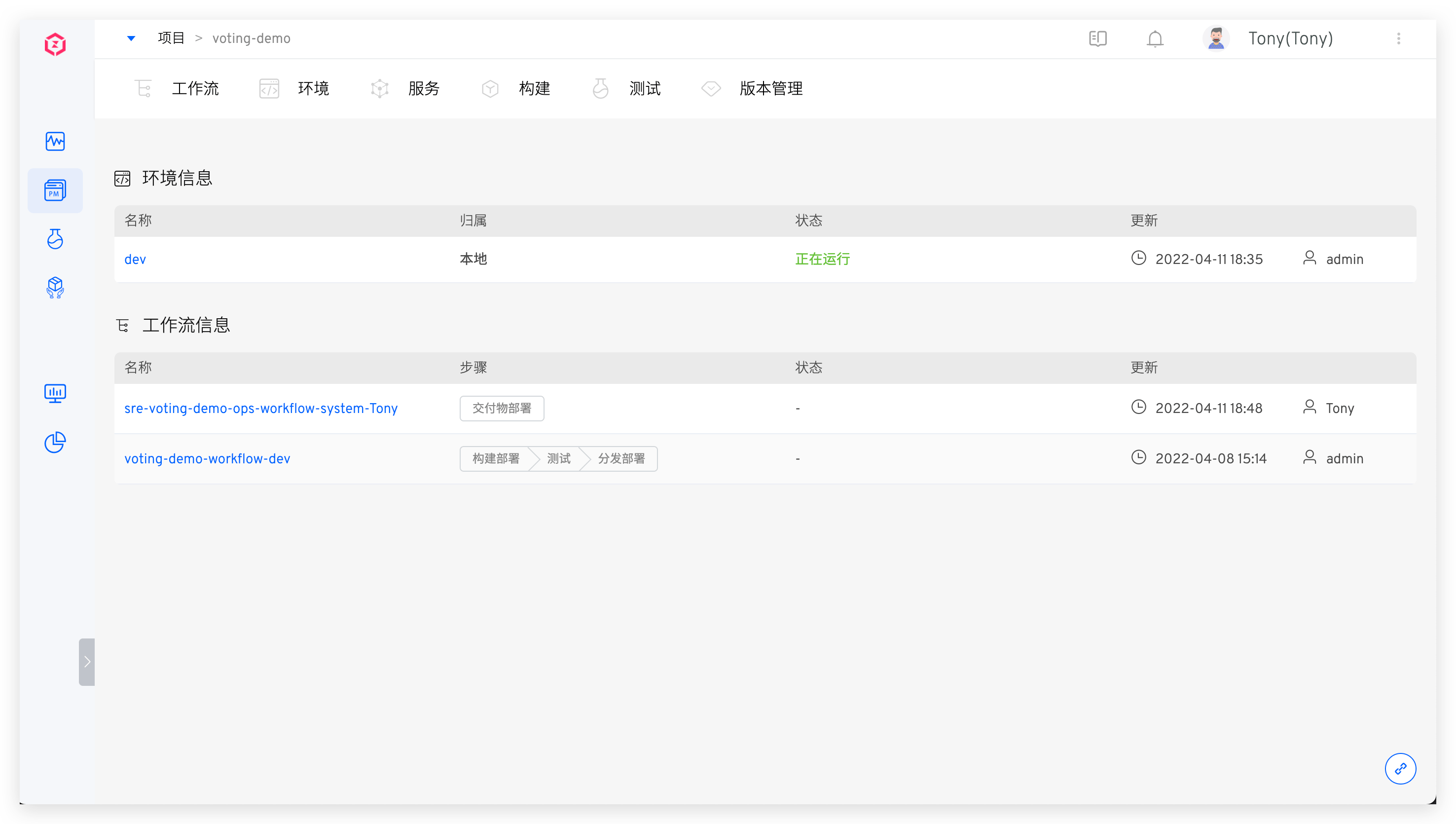
Zadig supports flexible permission configuration to enable team members to collaborate securely and efficiently, including:
- System Role: System-level permission configuration, refer to System Role
- Permission configuration: Project-level permission configuration, refer to Permission configuration
- Project access permissions: define the public / Private properties of the project, refer to Project access permissions
- Collaboration mode: The permission configuration for specified workflow and environmental resource granularity within the project, refer to Collaboration mode
# System Roles
Tip
Only system administrators can configure system roles.
Click on the avatar in the upper right corner > User Management > System Role to configure.
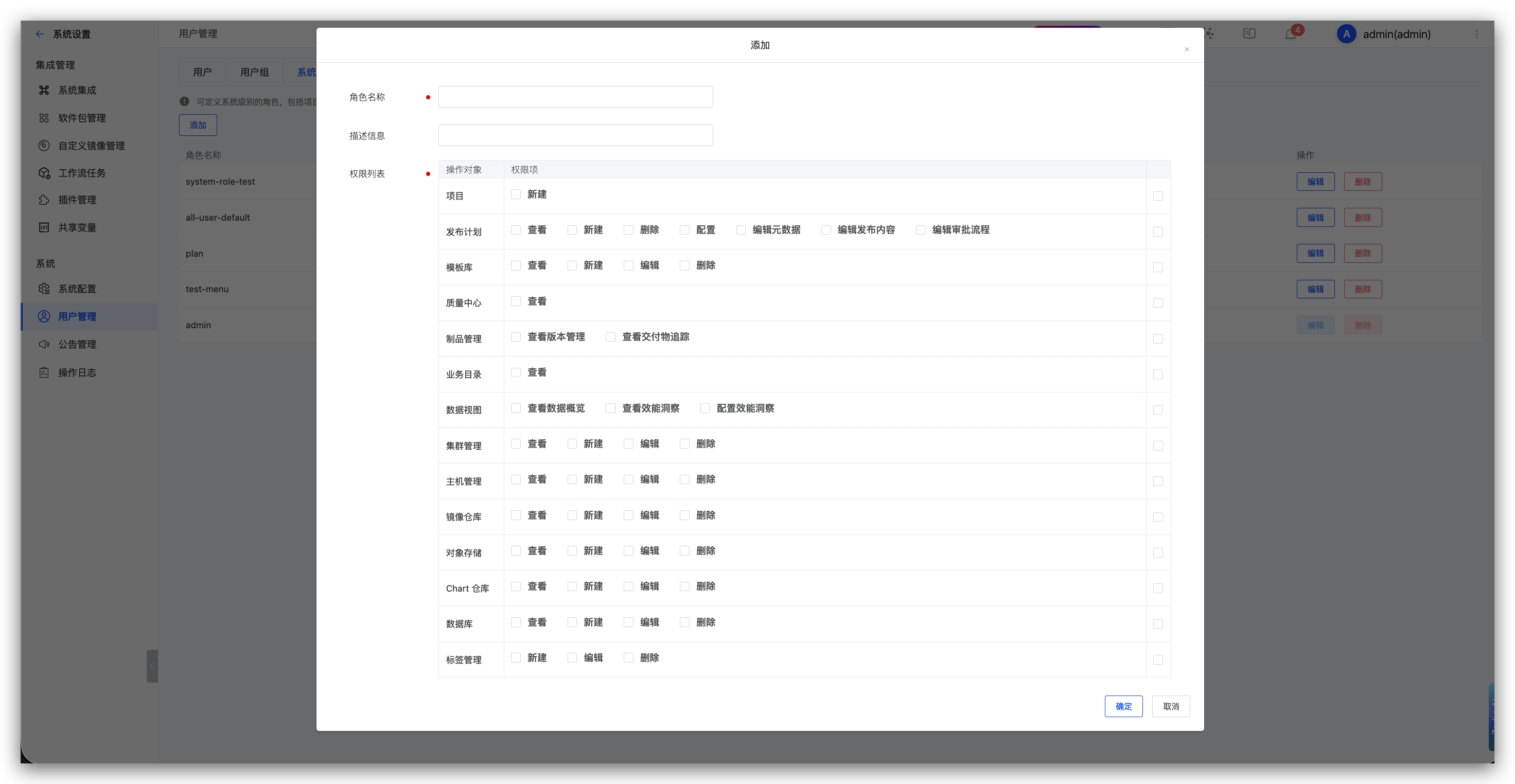
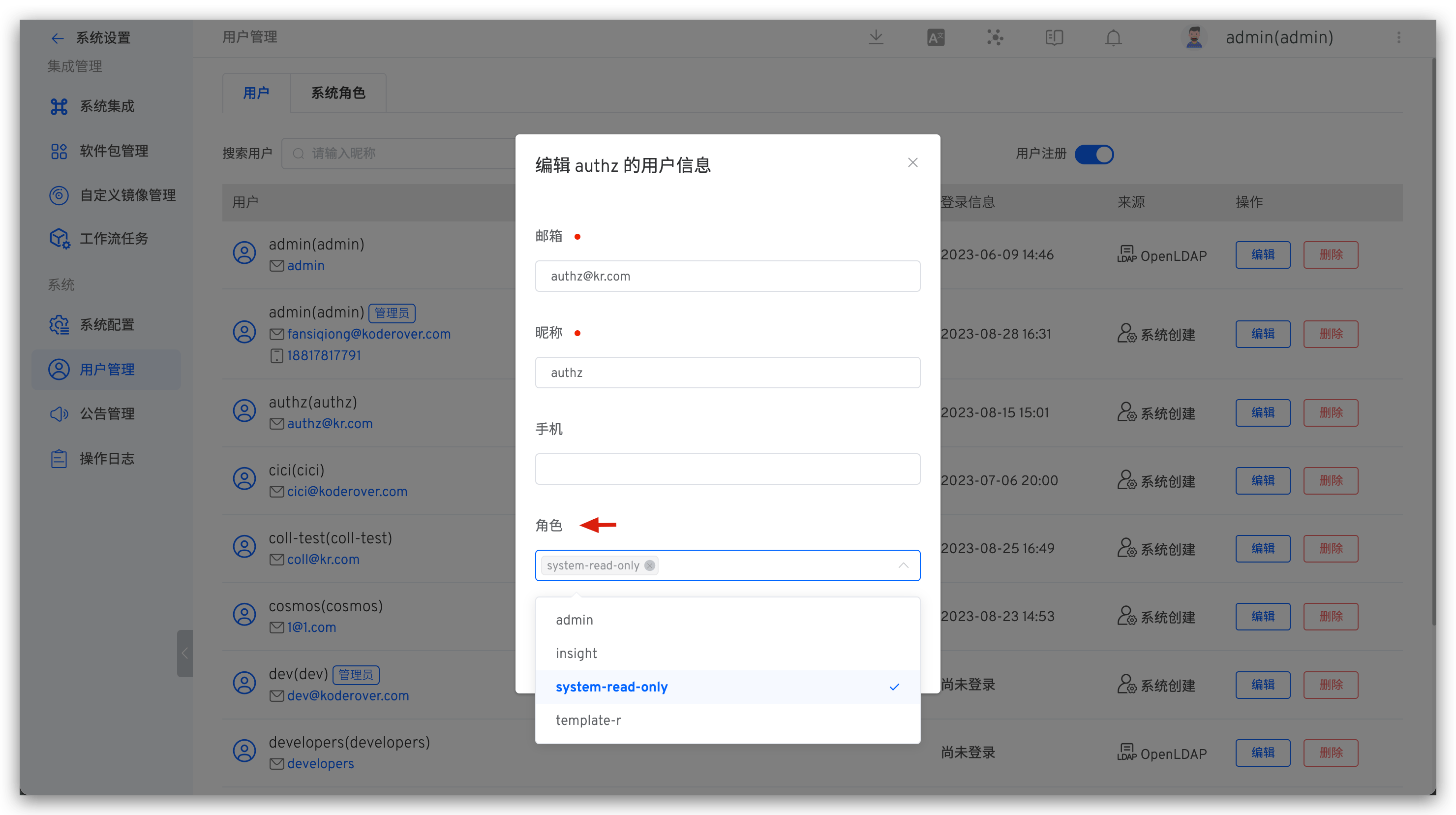
System roles can be specified in user information.
# Project Access Permissions
Tip
Only system administrators and project administrators can configure project access permissions.
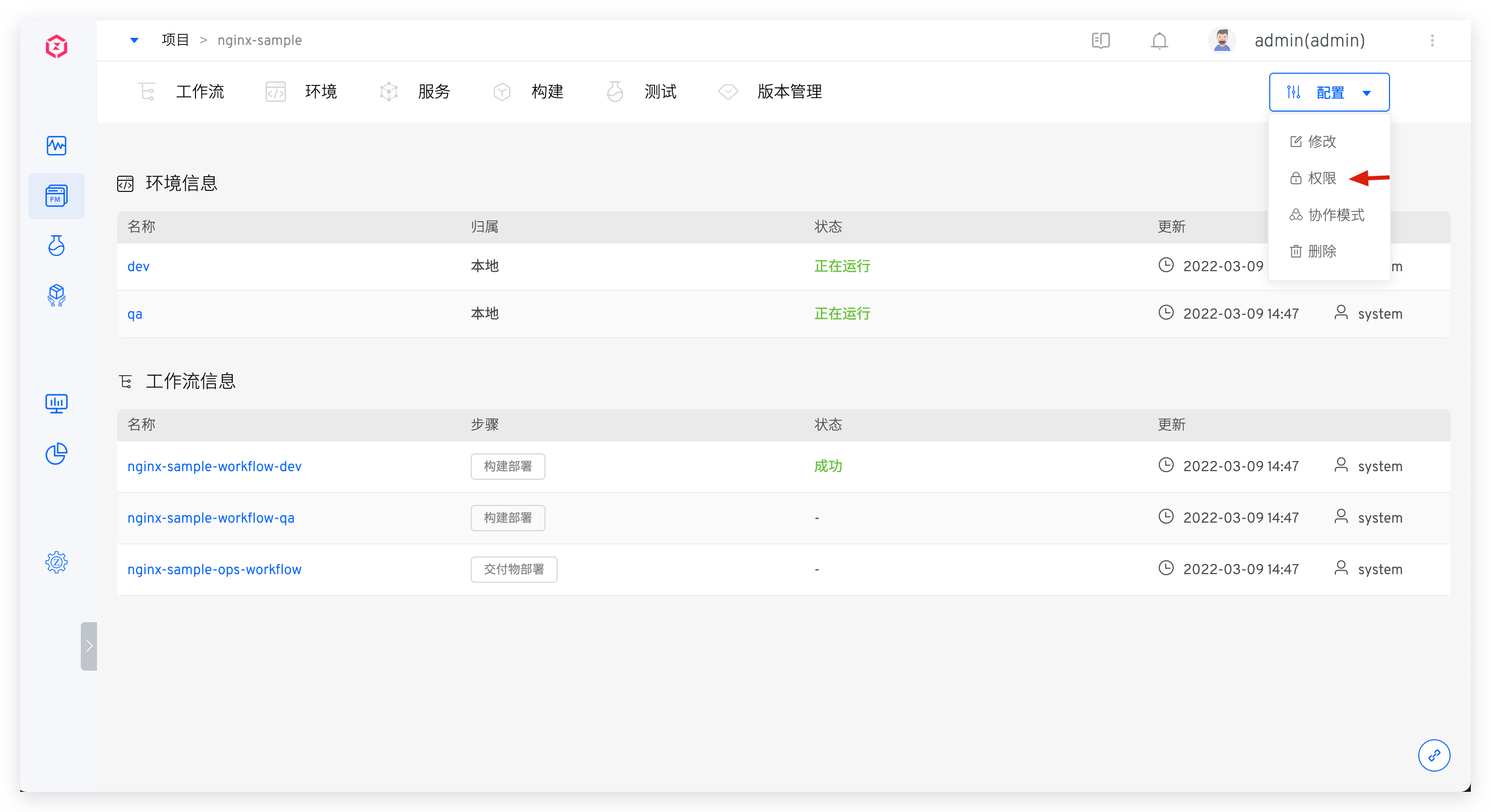
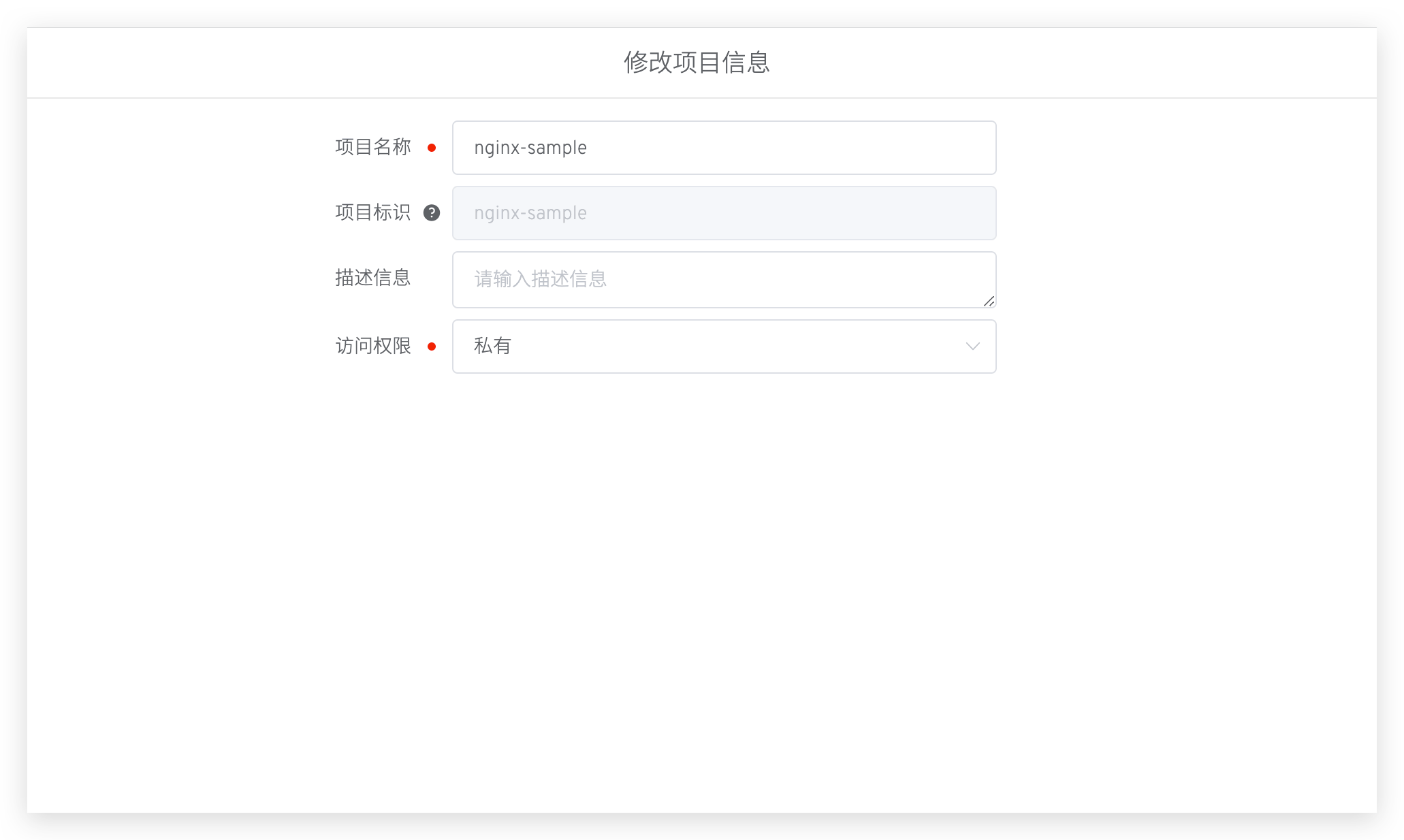
Click Configure > Modify > Edit Access Permissions to set the public/private attributes of the project. The differences between public and private projects are as follows:
- For private projects, all users have no permissions by default.
- For public projects, all users have read-only permissions by default, allowing them to view the environment, workflow, services, build, test, version, and code scanning in the project.
# Permission Configuration
Tip
Only project administrators can configure this.
Define project members and their permissions for all environments, workflows, services, testing, version management, code scanning, and other resources in the project.
In the project details page, click Configuration → Permission to configure project members and their permissions.
# Member Management
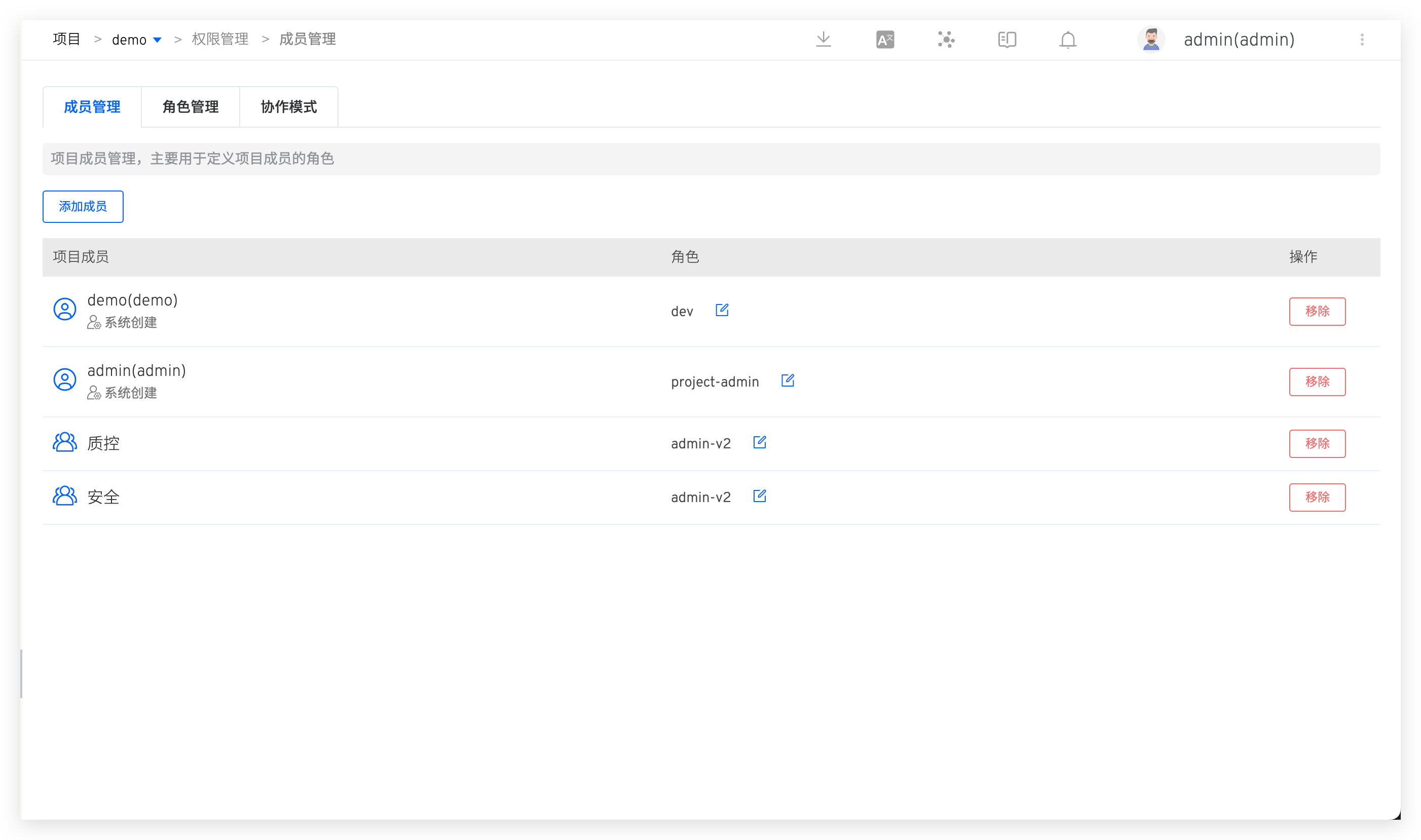
In Member Management, view the user member list and corresponding roles of the project, and configure user roles as needed.
- Roles are a collection of permissions, in role management , you can view permission details in roles
- Support adding user groups to project members to implement permission configuration for batch users
# Role Management
Includes system-built-in roles and project administrator-defined roles.
# Built-in Roles
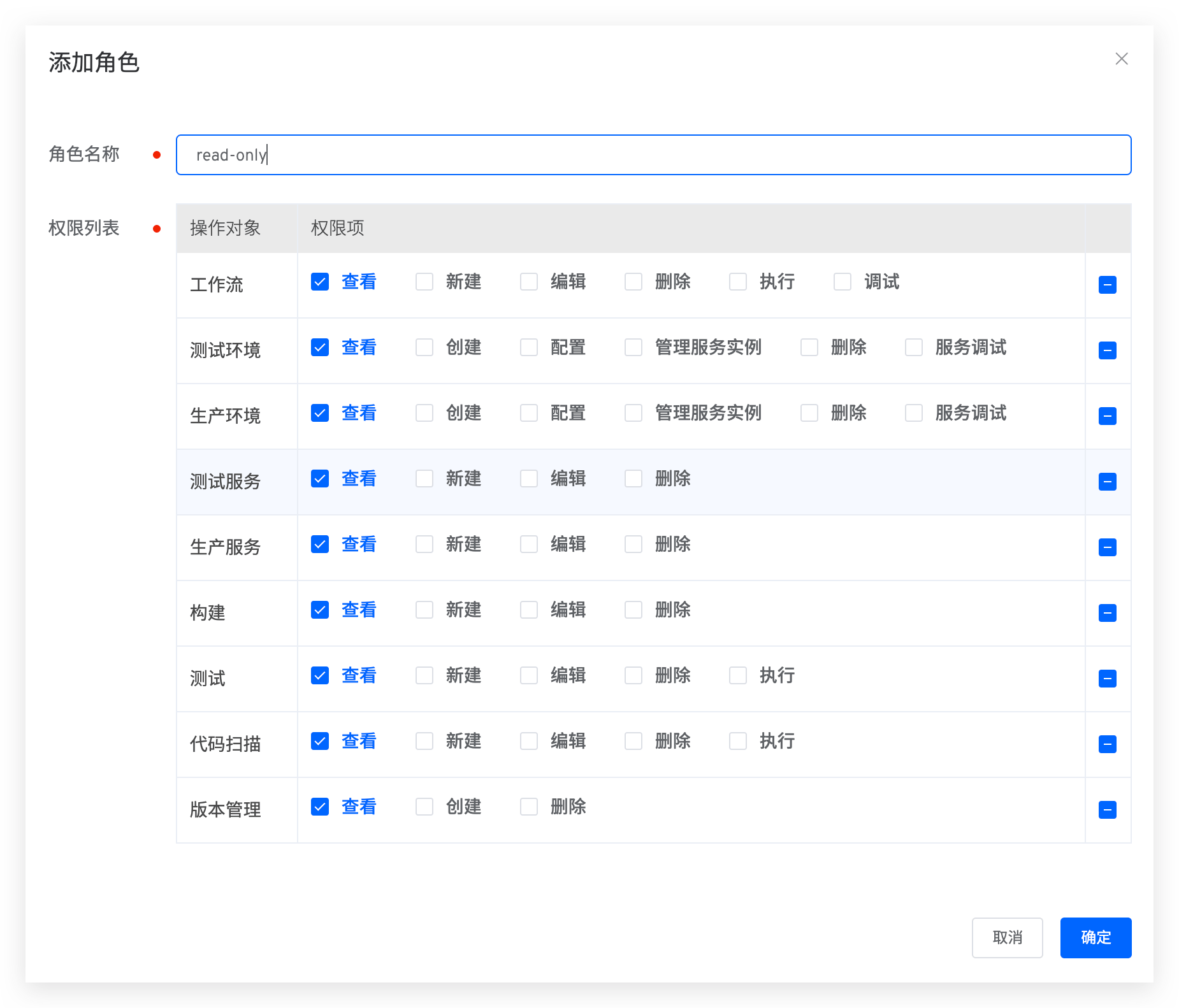
project-admin: Project administrator, can operate all resources in the project under their jurisdiction and can modify the project configuration.read-project-only: Members with this role can see the corresponding project in the project list but have no permission to operate the resources in the project.read-only: Read-only role. In public projects, all users have this role by default. The corresponding permission items are as follows:
# Custom Roles
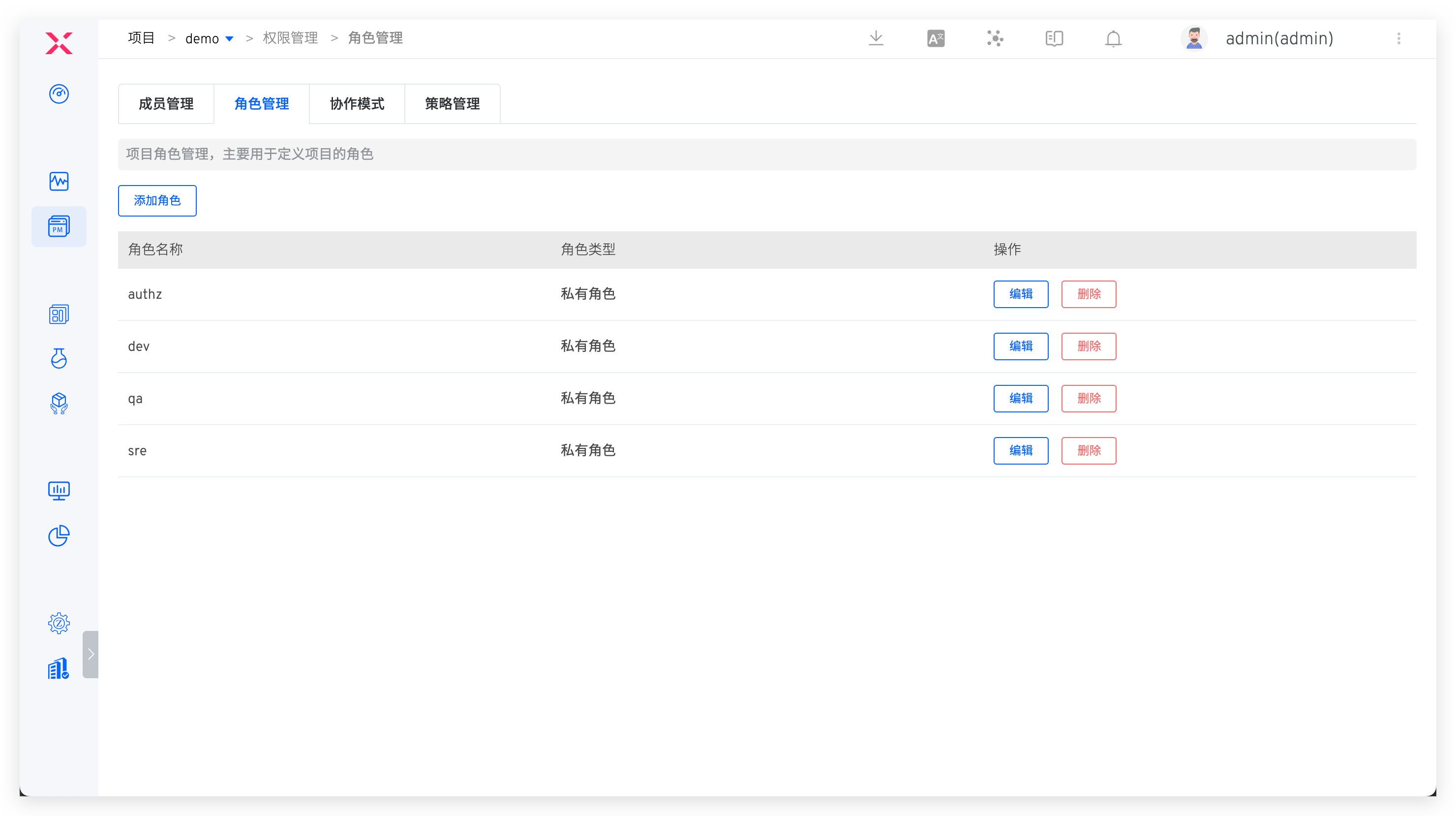
In Role Management, you can customize roles and assign permissions.
# Permission List
Describes the correspondence between each permission item and function. For the complete functional documents in each functional module, refer to Workflow / Environment / Service / Build / Test / Version Management / Code Scan.
Tip
The version in the K8s YAML project is created by executing the delivery deployment workflow. If permissions for creating a new version are required, configure the workflow execution permissions.
| Permissions and Feature List | ||
|---|---|---|
| Feature Module | Permission Item | Feature List |
| Workflow | View | - View workflow list, basic information, task list, task details - View workflow task execution logs (build logs, test logs, etc.) |
| Edit | - Modify workflow - Quickly enable/disable workflow timer - Associate test tasks with workflow - Edit fields in workflow task list | |
| Create | - Create new workflow - Copy workflow | |
| Delete | - Delete workflow | |
| Execute | - Start workflow - Retry/cancel/clone workflow tasks | |
| Environment | View | - View environment list, environment basic information - View service list and service details in environment - View environment configuration content (Ingress/ConfigMap/Secret/PVC), compare differences between versions - View service instance real-time logs, events, configuration management, YAML export (K8s YAML projects) |
| Create | - Create new environment - Create sub-environment | |
| Configure | - Update environment variables (K8s YAML projects), update global variables (K8s Helm Chart projects) - Configure hosting (K8s hosted projects) - Enable/disable self-test mode - Environment sleep and wake - Add/update/rollback/delete services - Edit environment configuration (Ingress/ConfigMap/Secret/PVC), delete environment configuration, rollback versions - View environment change records | |
| Delete | - Delete environment - Cancel environment hosting (K8s hosted projects) | |
| Manage Service Instances | - Replace service instance images, restart service instances, adjust service instance replica count, start container debugging - Update service instances - Host service start/stop | |
| Service Debug | - Enter service instance container for debugging (K8s YAML/K8s Helm Chart/K8s hosted projects) | |
| Host Login | - Login to hosts deployed in the environment (free projects) | |
| Service | View | - View service configuration |
| Edit | - Update service configuration | |
| Create | - Create new service configuration | |
| Delete | - Delete service configuration | |
| Build | View | - View build configuration |
| Edit | - Update build configuration | |
| Create | - Create new build configuration | |
| Delete | - Delete build configuration | |
| Test | View | - View test configuration |
| Edit | - Update test configuration | |
| Create | - Create new test configuration | |
| Delete | - Delete test configuration | |
| Version Management | View | - View versions |
| Edit | - Update versions | |
| Create | - Create new versions | |
| Code Scan | View | - View code scan configuration |
| Edit | - Update code scan configuration | |
| Create | - Create new code scan configuration | |
| Delete | - Delete code scan configuration | |
| Execute | - Execute/cancel code scan tasks | |
# Collaboration Mode
Tip
Only project administrators can configure this.
Applicable to projects with access permissions set to Private. It allows for permission control over specified workflows and environment resources within the project.
# Configure Collaboration Mode
Switch to Collaboration Mode in project permission management to configure the functional modules and permissions used by each member during the collaboration process.
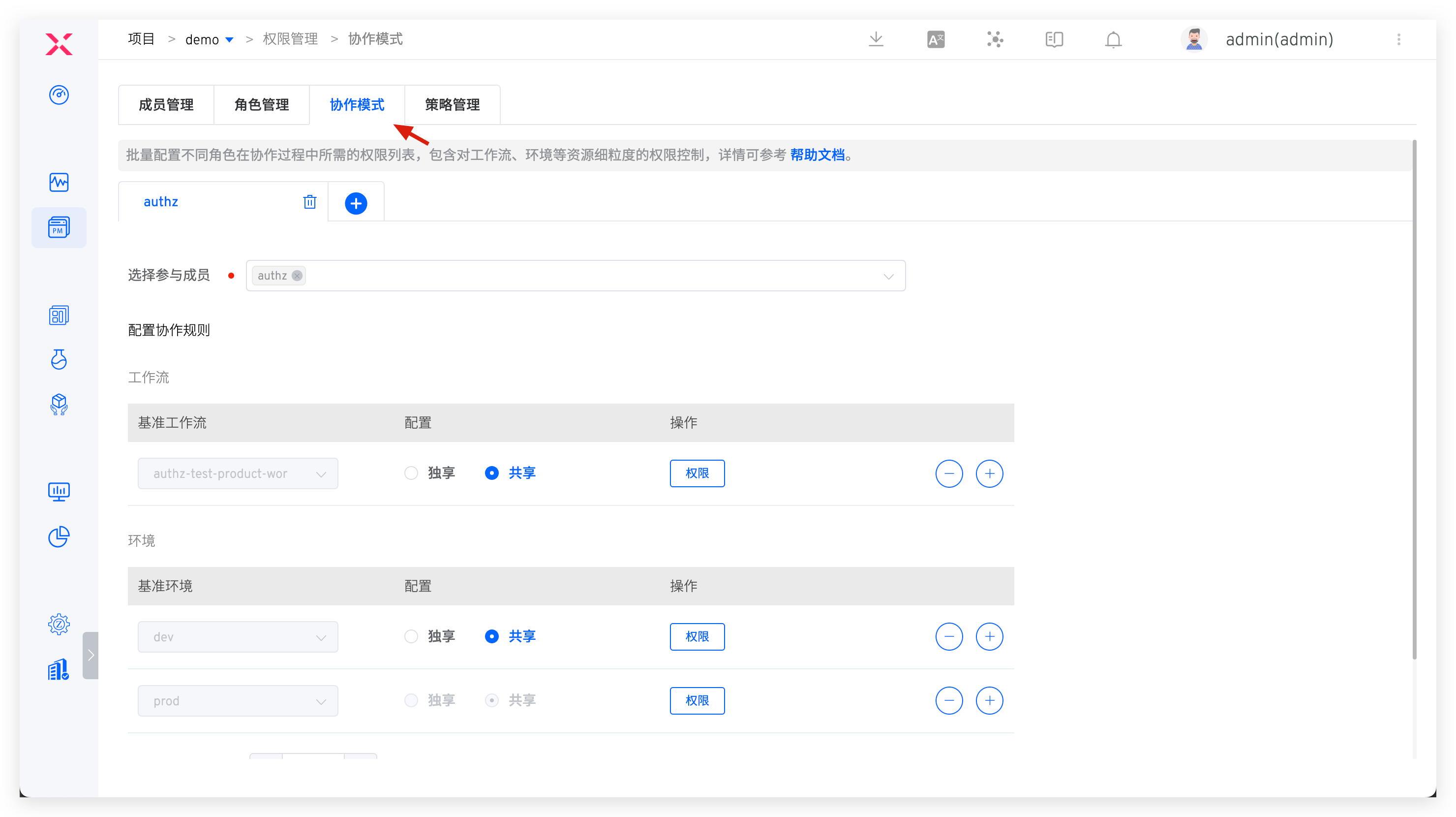
Configuration instructions:
- Fill in the name of the collaboration mode, such as
developer. - Select participating members, only project members can be selected. If the users who need to be added are not in the member list, they can be added in member management .
- Configure collaboration rules. Based on the needs, configure workflows and environmental resources for collaboration members and set operation permissions and recycling rules, including:
- Exclusive: Based on the benchmark workflow/benchmark environment, create a new workflow/environment for each collaborative member for their exclusive use. The naming rule for the new resource is
Collaboration Mode Name-Benchmark Resource Name-User Source-User Name, applicable to K8s YAML/K8s Helm Chart projects - Shared: Collaboration members share the use of the benchmark workflow/benchmark environment resources without creating new resources for them.
- Resource Recycling Policy: If a member does not access the project within the configured time, the member's resources will be recycled. When the member revisits the project, they will regain the resources.
- Exclusive: Based on the benchmark workflow/benchmark environment, create a new workflow/environment for each collaborative member for their exclusive use. The naming rule for the new resource is
# How to Use It in Collaboration
When a member in the collaboration mode logs into the Zadig system and enters the specified project, they should confirm the workflows and environmental resources allocated in the collaboration mode.
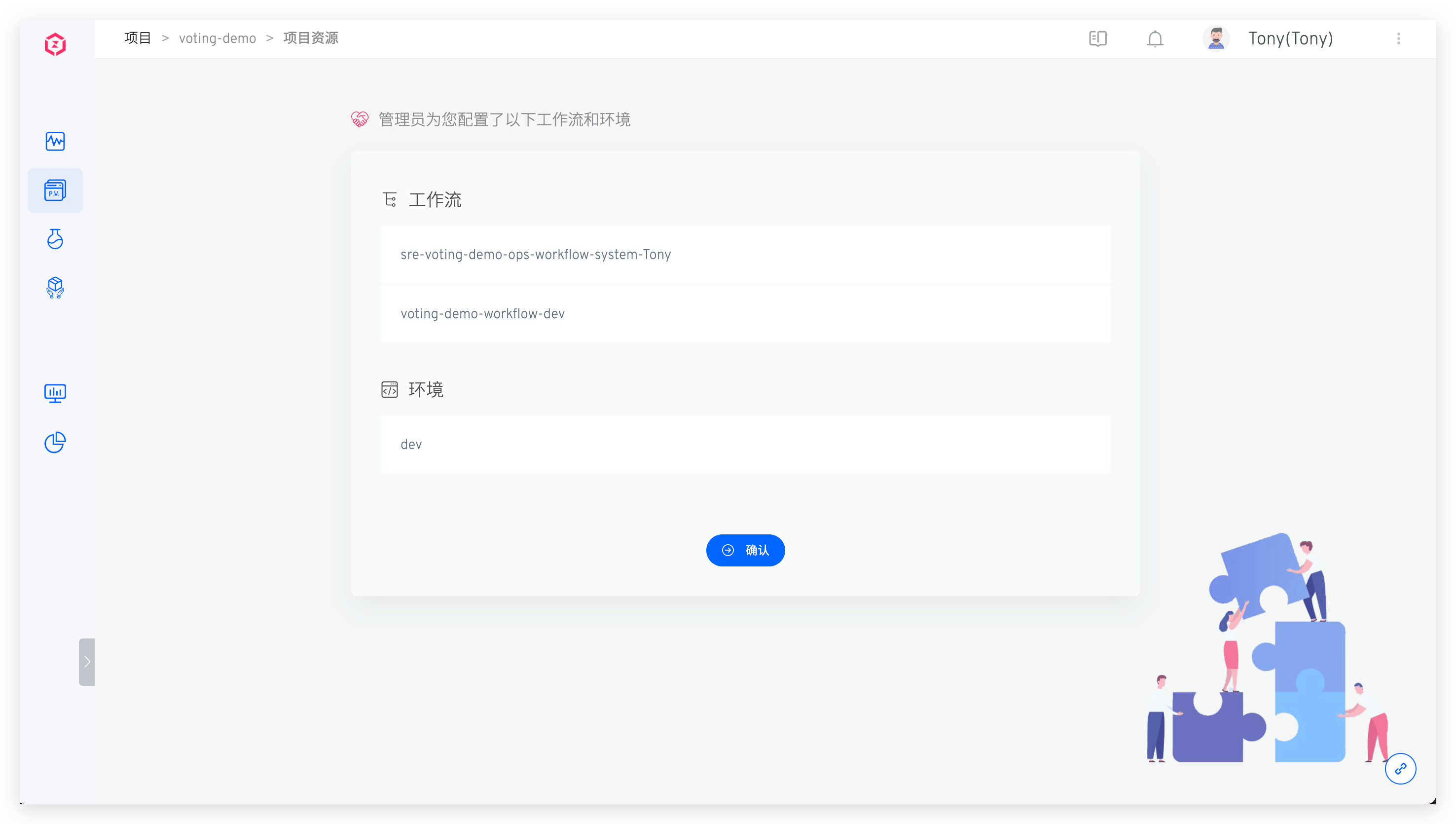
Wait a moment for the system to prepare the resources, and the member can then obtain the operation permissions for the corresponding resources and use them in their daily work.